

 Copilot is a handy Artificial Intelligence (AI) feature of Windows. You can quickly use ALT+SPACE to open the Copilot and use AI to answer your questions.
However, for many, privacy issues may be a reason to leave Copilot alone. Or you may not have access to Copilot for whatever reason. For those,  DuckAI can be a better alternative. DuckAI uses ChatGPT and because all queries are sent to ChatGPT by DuckAI, your chats are not linked to you.
Another option is to use ChatGPT. See this article for more information about implementing ChatGPT with Unify.
But Windows offers no easy keyboard shortcut like ALT+SPACE to open DuckAI as it does for Copilot. Luckily, using Unify's Hotkey Extender and its scripting engine you can easily create this. Once done, you can use your Unify Hotkey (by default: CTRL+SPACE) and then type a query which will be passed to DuckAI.
If you want to quickly add the hotkey to Unify, click the download button below and open the Unify Import file (make sure you have registred Unify file extensions in Unify general settings).
Just open the downloaded ZIP file and open the Unify Import file it contains. Make sure you have associated Unify filetypes with Unify, see Unify's general settings, otherwise the file will not be opened by Unify.
If you want to know more on how to add and use hotkeys in Unify, please read on. Below, we give a step-by-step tutorial on how to do this.
Obviously, you first need to install and open Unify. Once that's done:
Unify's Hotkey Extender can pass any query / text you type to a script. That way we can process that query using scripting. In this case we want to pass the query to DuckAI.
To do this, we are going to create a Unify script that opens DuckAI website in a popup window and once the site is loaded, the script will paste the query input from the Hotkey Extender.
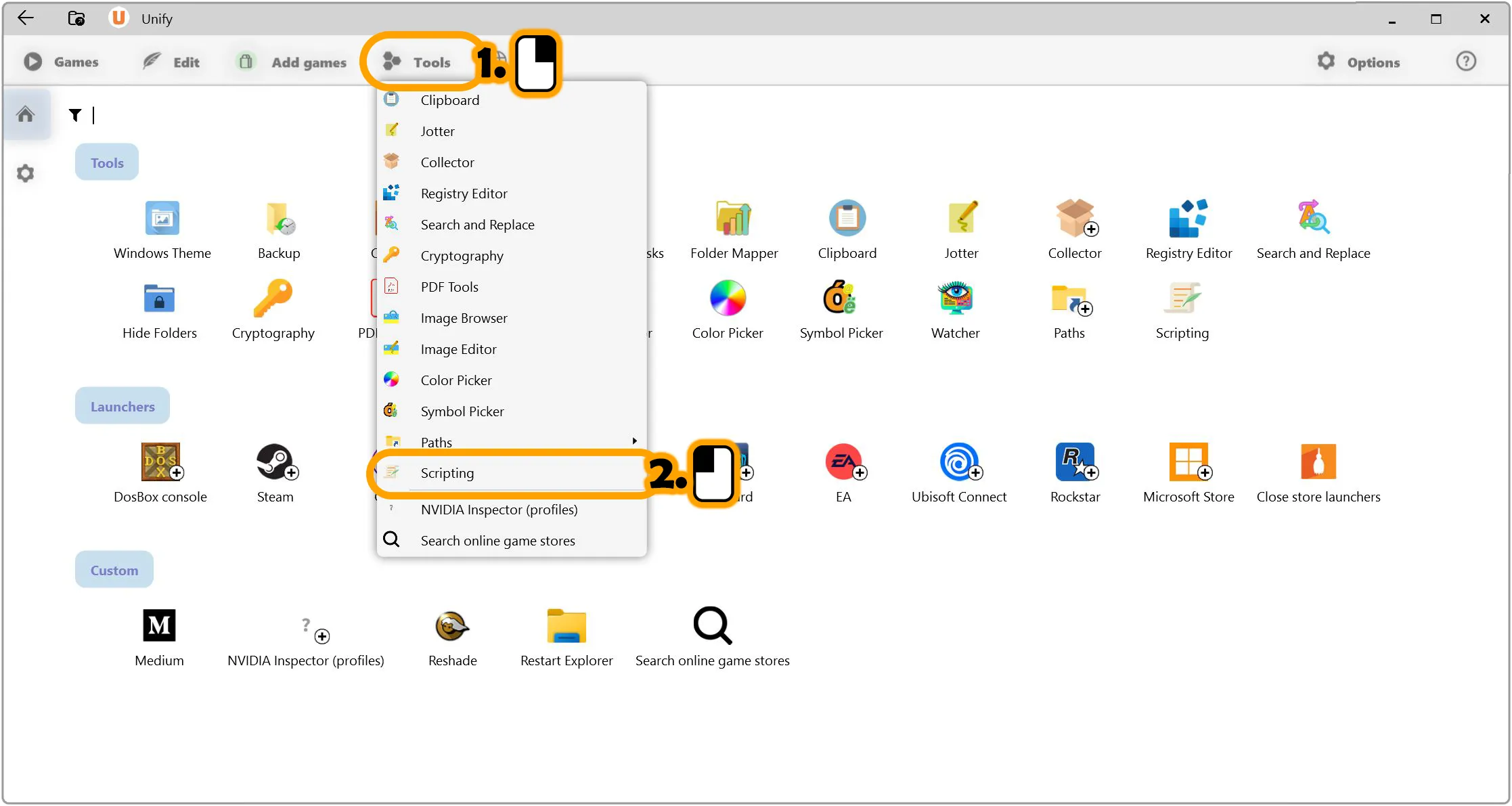
To create the script:
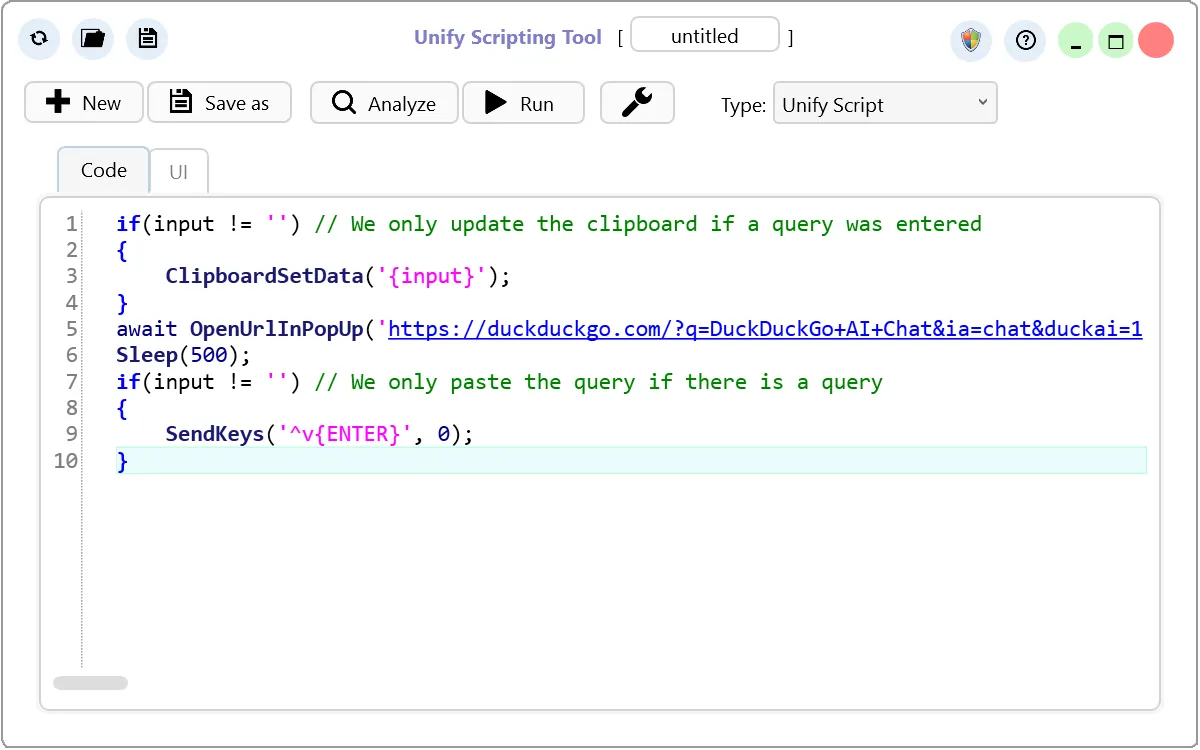
Depending on your settings, pressing ENTER in DuckAI could create a new line instead of sending the question. In that case you may need to press CTRL+ENTER. To accomodate for this, you need to replace '^v{ENTER}' with '^v^{ENTER}'.
Sometimes it may be necessary to focus the text input area. You can do this using javascript. You can do this by adding the following line after Sleep(500):
PopupBrowser.ExecuteScriptAsync('document.querySelector("textarea[name=\"user-prompt\"]")?.focus();');
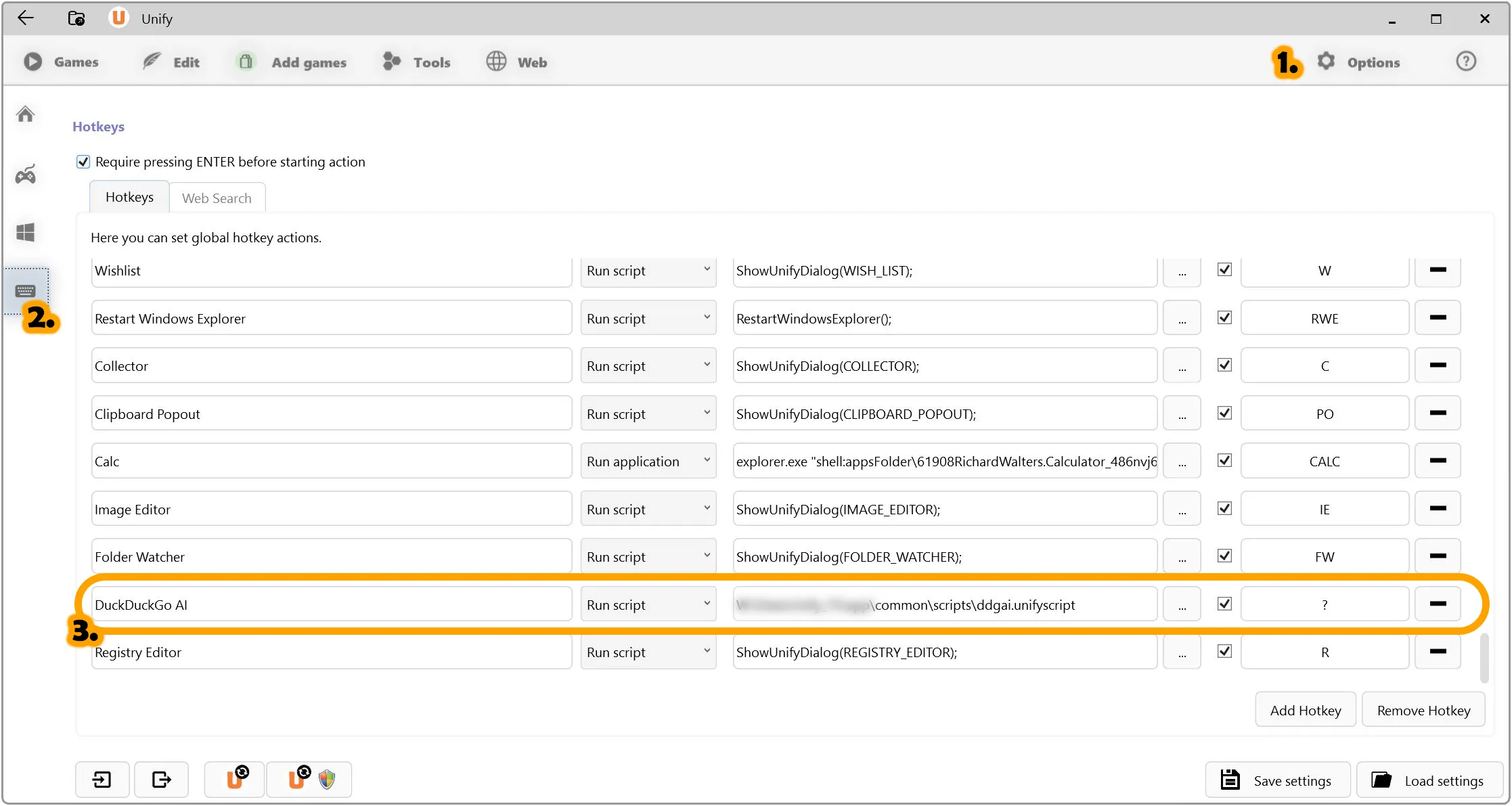
Now we will create a hotkey in Unify's HotKey extender that will execute the script:
| Decription | Any name you want, like DuckAI |
| Action | Select Run Script |
| Parameter | Browse for the script file you created above |
| Hotkey | Check the checkbox to make this hotkey a subhotkey. Then, as the subhotkey, enter ? |
Now test the hotkey by opening the HotKey Extender (using CTRL+SPACE by default). Then press '? ' (question mark, space; do not forget the space!) followed by the query and press ENTER.
If you do not enter any query, the script will simply open DuckAI.
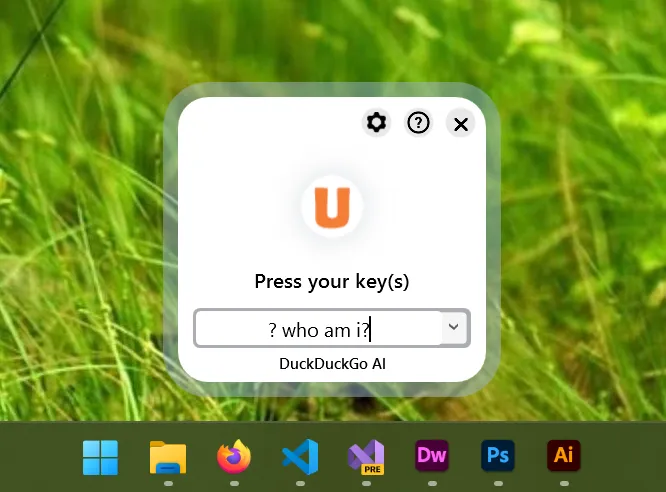
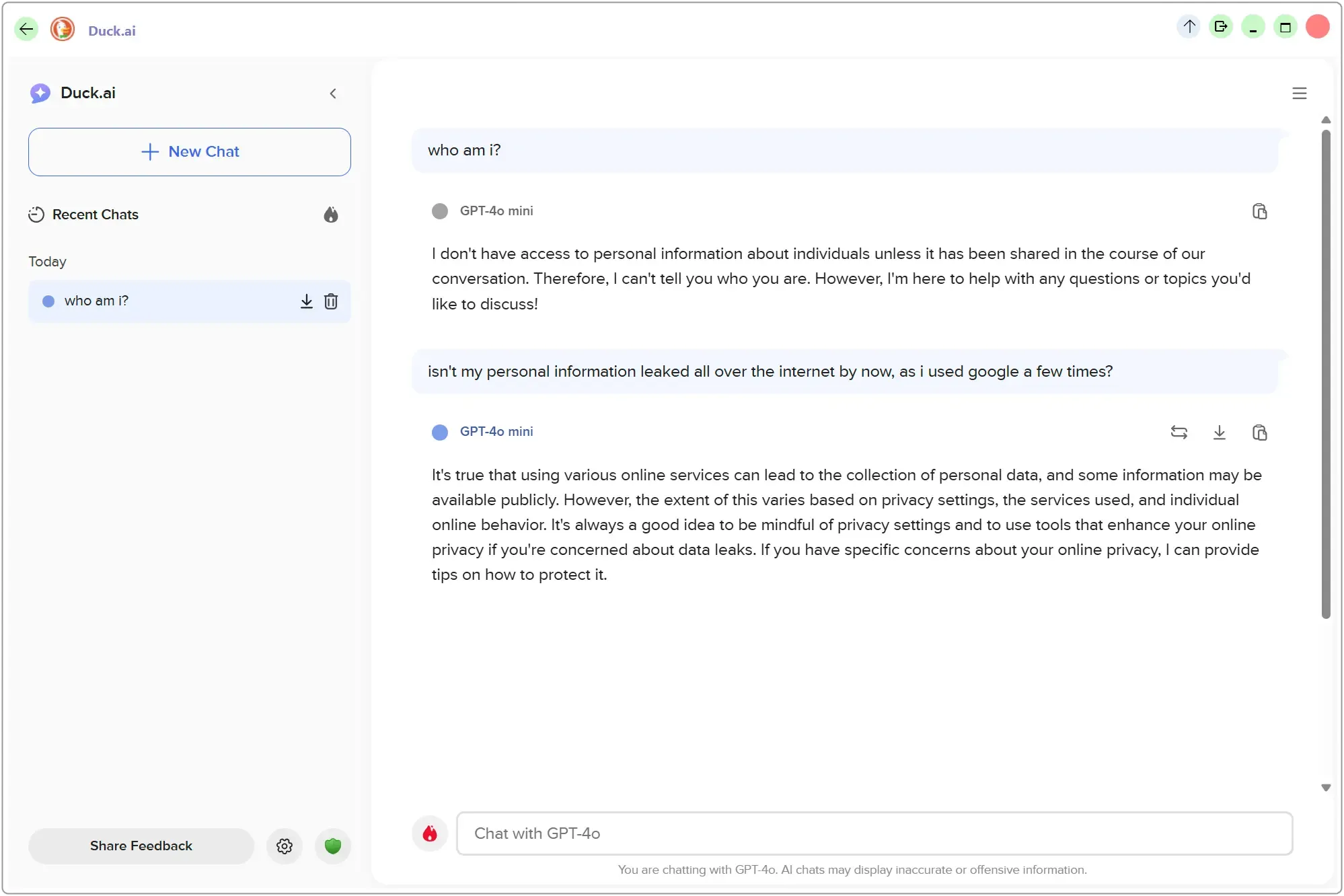
This will open DuckAI. The first time you do this you will need to setup DuckAI. But after that, DuckAI wil start answering your queries.
As you can see above, Unify allows you to quickly open DuckAI from a hotkey and start chatting with an AI without having to worry if your chats are being sent directly to your president or any other dictator 😊!
© Copyright by FSS
Terms and disclaimer

 Download DuckAI hotkey import file