

 Copilot is a handy Artificial Intelligence (AI) feature of Windows. You can quickly use ALT+SPACE to open the Copilot and use AI to answer your questions or to perform actions.
The issue is that you may not have access to Copilot for whatever reason. Or maybe you just don't like Copilot. And many of us only want to use a simple chat function without in-the-background interactions with the OS. For those,  ChatGPT can be a better alternative.
Another option is to use DuckAI if you prefer anonymous chatting. See this article for more information about implementing DuckAI with Unify.
But Windows offers no easy keyboard shortcut like ALT+SPACE to open DuckAI as it does for Copilot. Luckily, using Unify's Hotkey Extender and its scripting engine you can easily create this. Once done, you can use your Unify Hotkey (by default: CTRL+SPACE) and then type a query which will be passed to ChatGPT.
In this article, we offer two method to quickly access ChatGPT from Windows:
This method will show ChatGPT in a popup window (instead of Copilot) when pressing ALT+ENTER.
You can easily import the hotkey in Unify that launches ChatGPT when pressing ALT+ENTER by downloading the import file:
Just open the downloaded ZIP file and open the Unify Import file it contains. Make sure you have associated Unify filetypes with Unify, see Unify's general settings, otherwise the file will not be opened by Unify.
This method will show ChatGPT in a popup window after opening Quicky and then pressing the ?? subhotkey. Using Quicky you can have multiple subhotkeys, so you could also launch DuckAI or any other webpage this way by simple editing the script.
If you want to quickly add the hotkey to Unify, click the download button below and open the Unify Import file.
Just open the downloaded ZIP file and open the Unify Import file it contains. Make sure you have associated Unify filetypes with Unify, see Unify's general settings, otherwise the file will not be opened by Unify.
If you want to know more on how to add and use hotkeys in Unify, please read on. Below, we give a step-by-step tutorial on how to do this.
Obviously, you first need to install and open Unify. Once that's done, there are several ways to create a script and assign hotkey in Unify. The easiest way is:
First we will add a hotkey to Unify's HotKey tool that will execute the script:
| Name | Any name you want, like ChatGPT |
| Action | Select Run Script |
| Parameters | Leave blank for now |
| Hotkey | Check the checkbox to make this hotkey a subhotkey. Then, as the subhotkey, enter ? Using the subhotkey ?, we can quickly access multiple hotkeys from Unify's Hotkey Extender and will never run out of keys. |

Unify's Hotkey Extender can pass any query / text you type to a Unify script. This allows us to process that input using scripting. In this case we want to create a script that passes the input to ChatGPT.
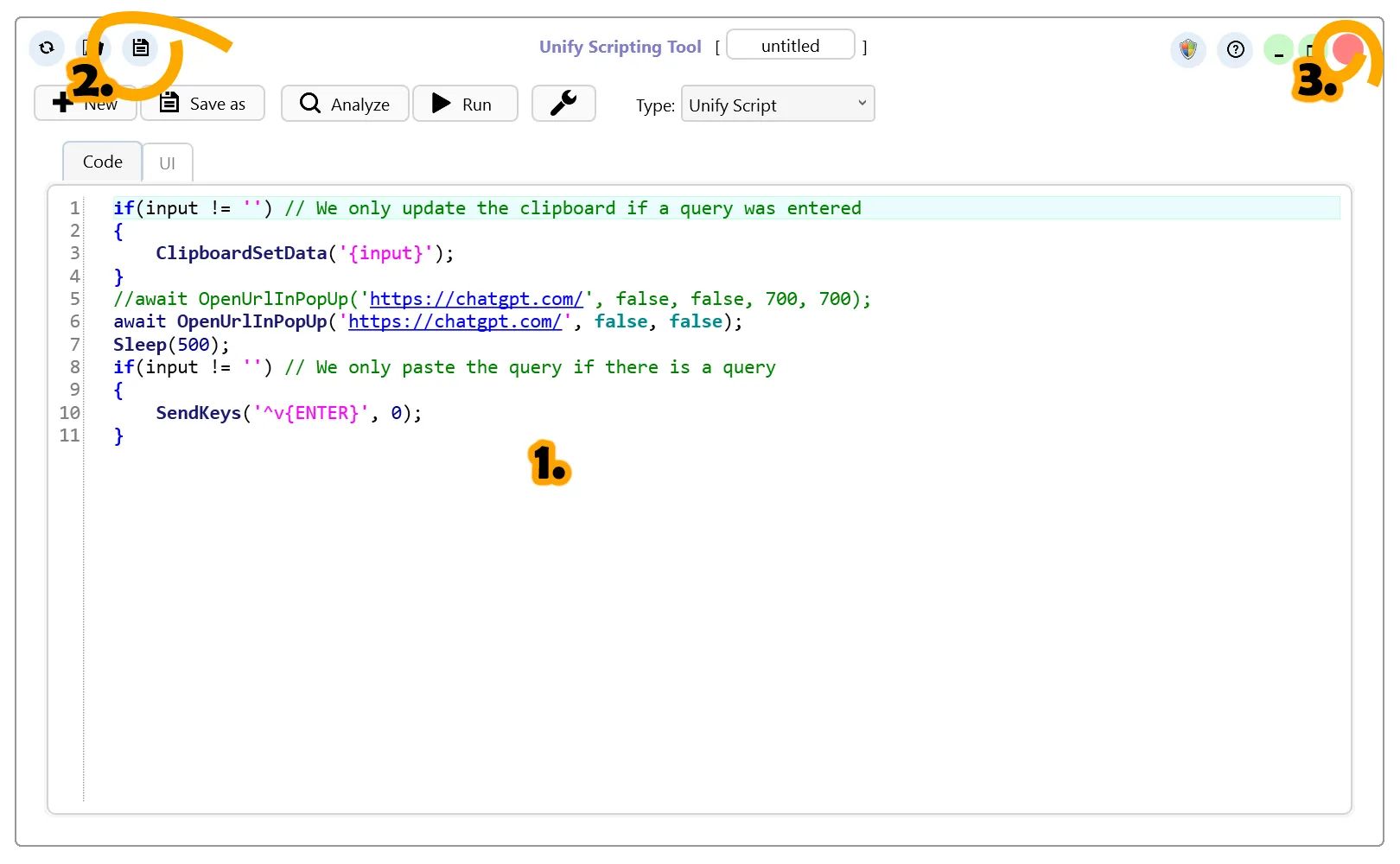
To do this, we are going to create a Unify script that opens ChatGPT website in a popup window and once the site is loaded, the script will paste the query input from the Hotkey Extender.
To create the script:
 button besides the Parameters textfield. See below.
Depending on your settings, pressing ENTER in ChatGPT could create a new line instead of sending the question. In that case you may need to press CTRL+ENTER. To accomodate for this, you need to replace '^v{ENTER}' with '^v^{ENTER}'.
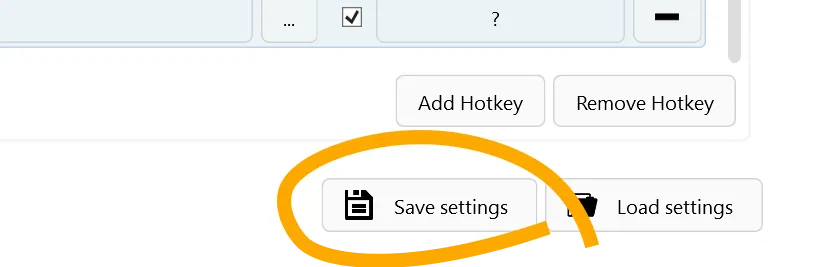
Finally, click Save settings in Unify options to save the hotkey.
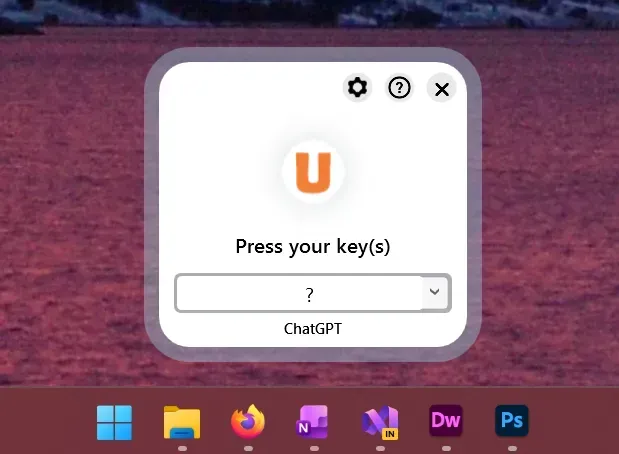
Now test the hotkey by opening the HotKey Extender (using CTRL+SPACE by default). Then press '? ' (question mark, space; do not forget the space!) followed by your query and press ENTER.
If you do not enter any query, the script will simply open ChatGPT in a popup window, which can also be handy.
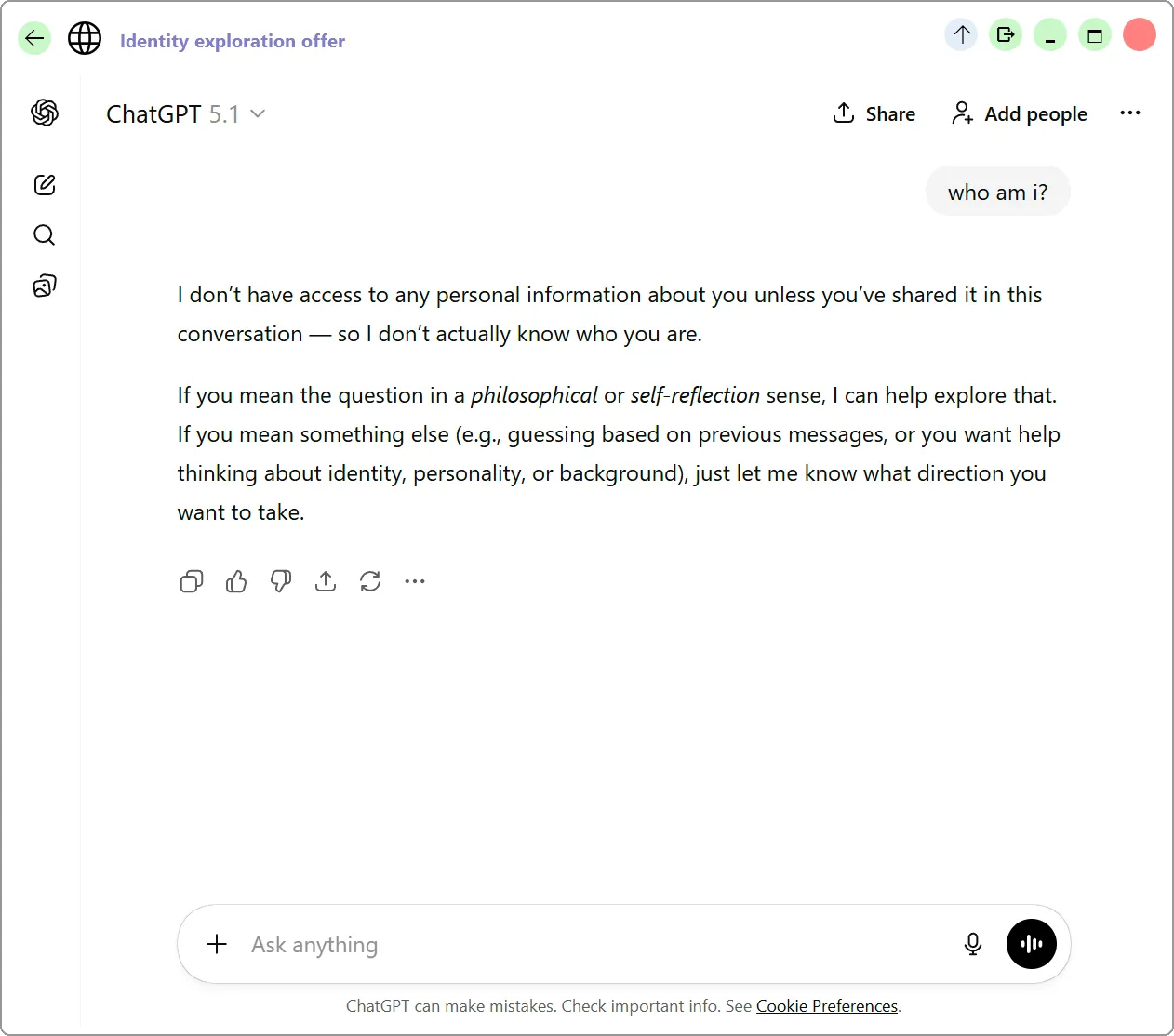
This will open ChatGPT. The first time you do this, you will need to setup ChatGPT. But after that, ChatGPT wil start answering your queries.
As you can see above, Unify allows you to quickly open ChatGPT from a hotkey so you can start chatting with an AI easily and anytime.
© Copyright by FSS
Terms and disclaimer

 Download ChatGPT hotkey import file